Every part earns its place on the screen.
Conduit collapsed a pile of separate trackers into one calm working surface. Here's what runs underneath it — the daily driver, the self-projecting timeline, the portfolio view, and the coverage model that keeps a dozen jobs from slipping.
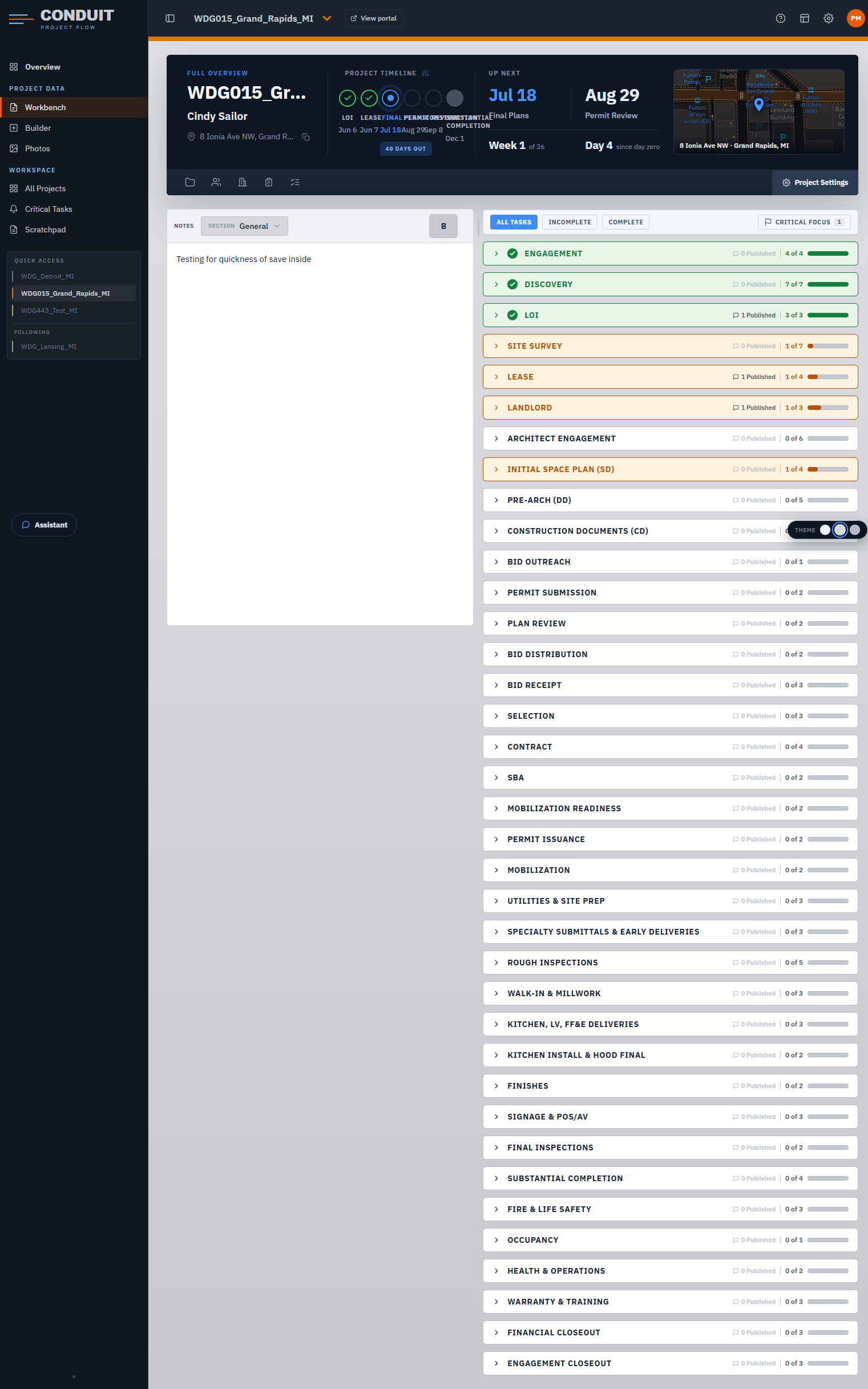
Your whole day on one screen.
Pick a note-section lens and one choice does three things at once: it filters the task list to what that lens owns, floats the matching document folders to the top, and names the phase you're working in. Notes on one side, your task timeline on the other.
- A switchable rail — folders, contacts, site data, meeting minutes, and a live task snapshot, one click away.
- An autosaving notepad per lens, so your thinking lives right next to the tasks it's about.
- Critical Focus pins the urgent work on the right while your notes keep roaming on the left.
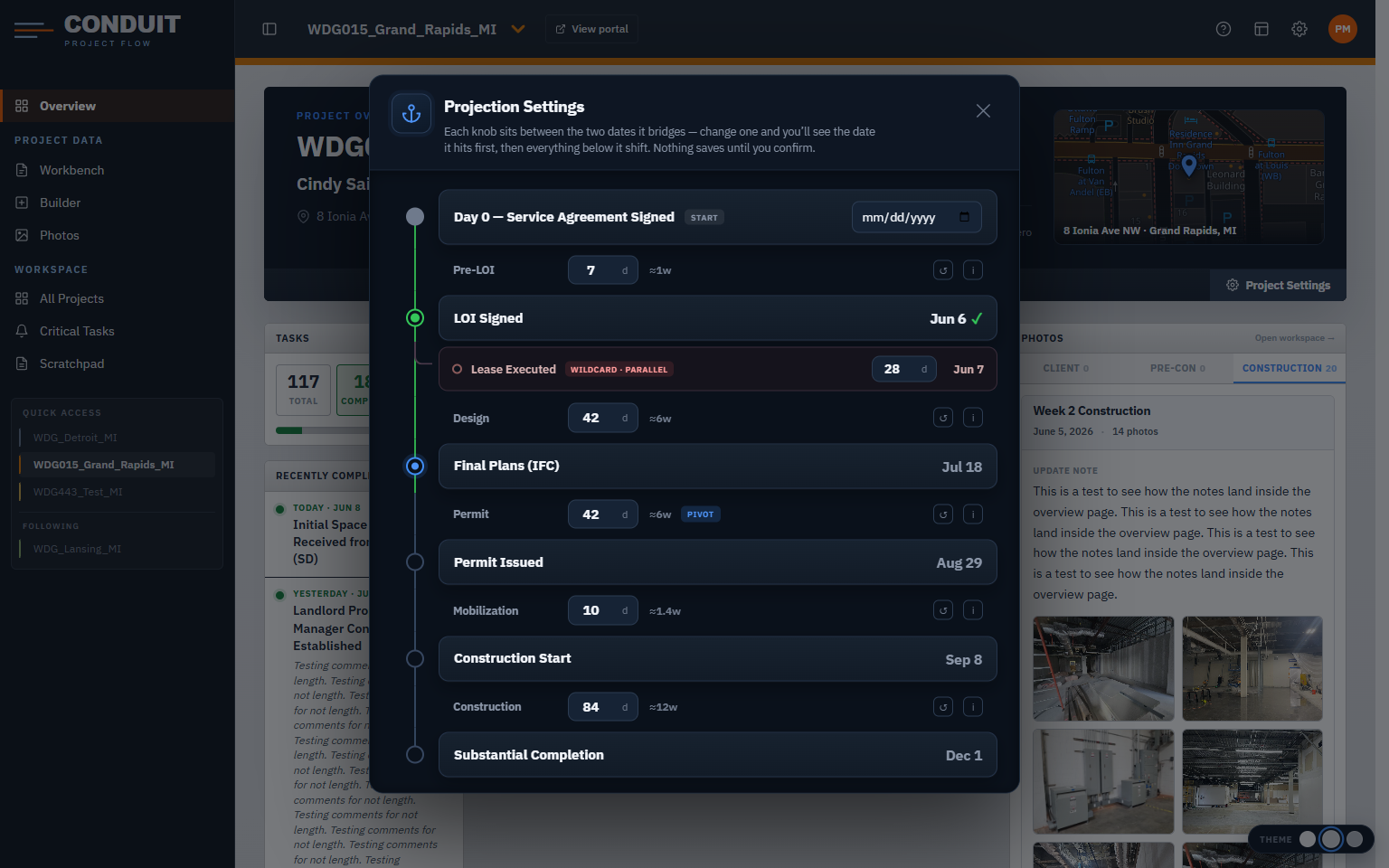
A schedule that keeps itself honest.
There's no end date to enter. You set Day Zero and the day-gaps between milestones; Conduit projects every date forward. When a real completion date lands, the whole downstream schedule re-flows to match — automatically.
- Edit reality, not the future. Completion dates are yours to correct; projected dates only move when a gap moves.
- See the change before you commit. Adjust a gap and watch which date moves first, then everything below it — nothing saves until you confirm.
- Lease runs in parallel. A stalled lease only pushes design when it actually overruns it — the real risk, modeled honestly.
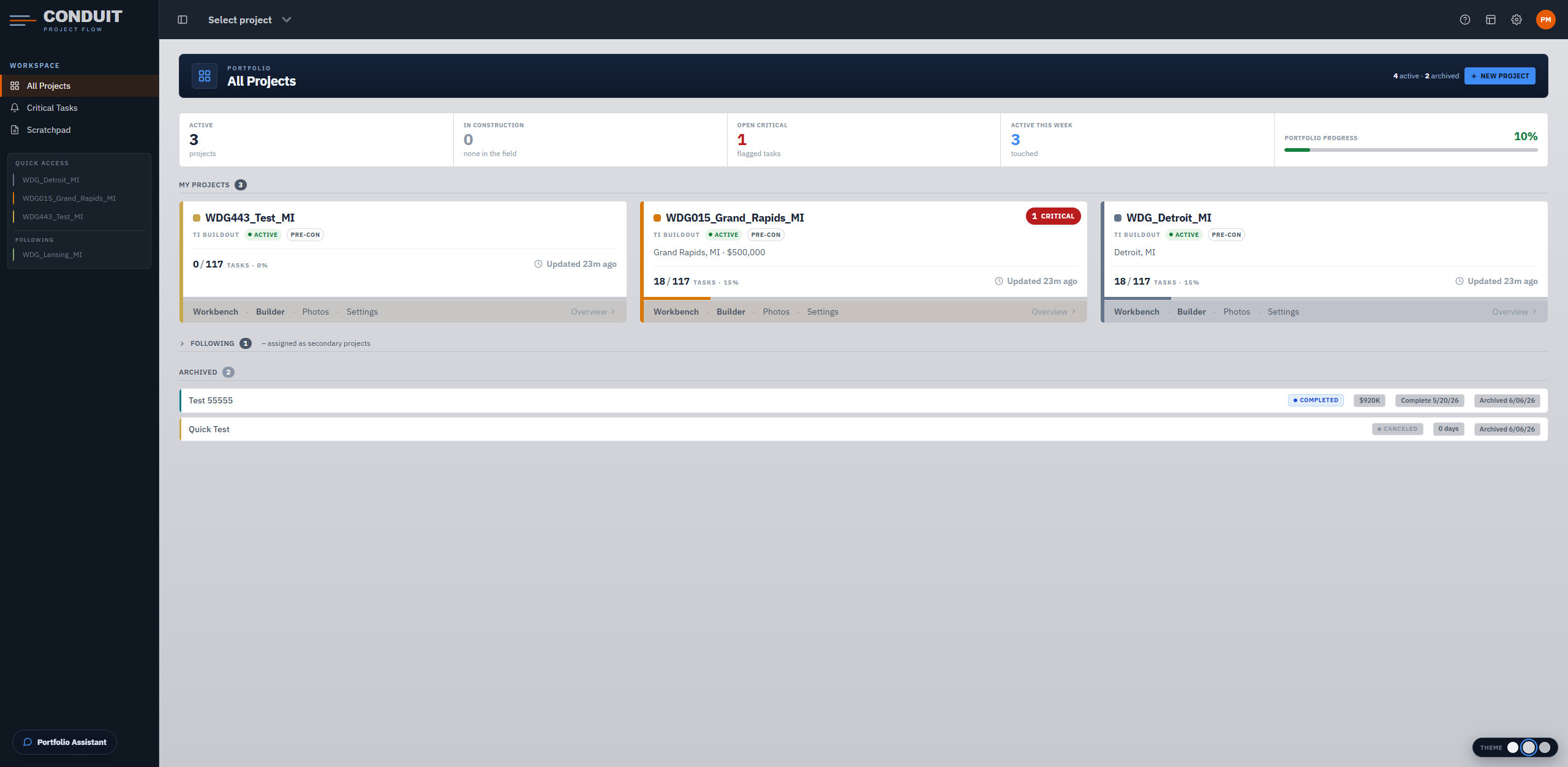
The whole book of business, on one screen.
A consulting PM's home isn't a project — it's a portfolio. The landing page reads your load in a glance: what's active, what's in the field, what's flagged, and what you've actually touched this week.
- A load strip totaling active jobs, builds in the field, open critical tasks, and portfolio progress.
- Project cards that surface phase, progress, value, and an idle warning when a job's gone quiet too long.
- A cross-project Critical Tasks page so urgent work never hides inside one job.
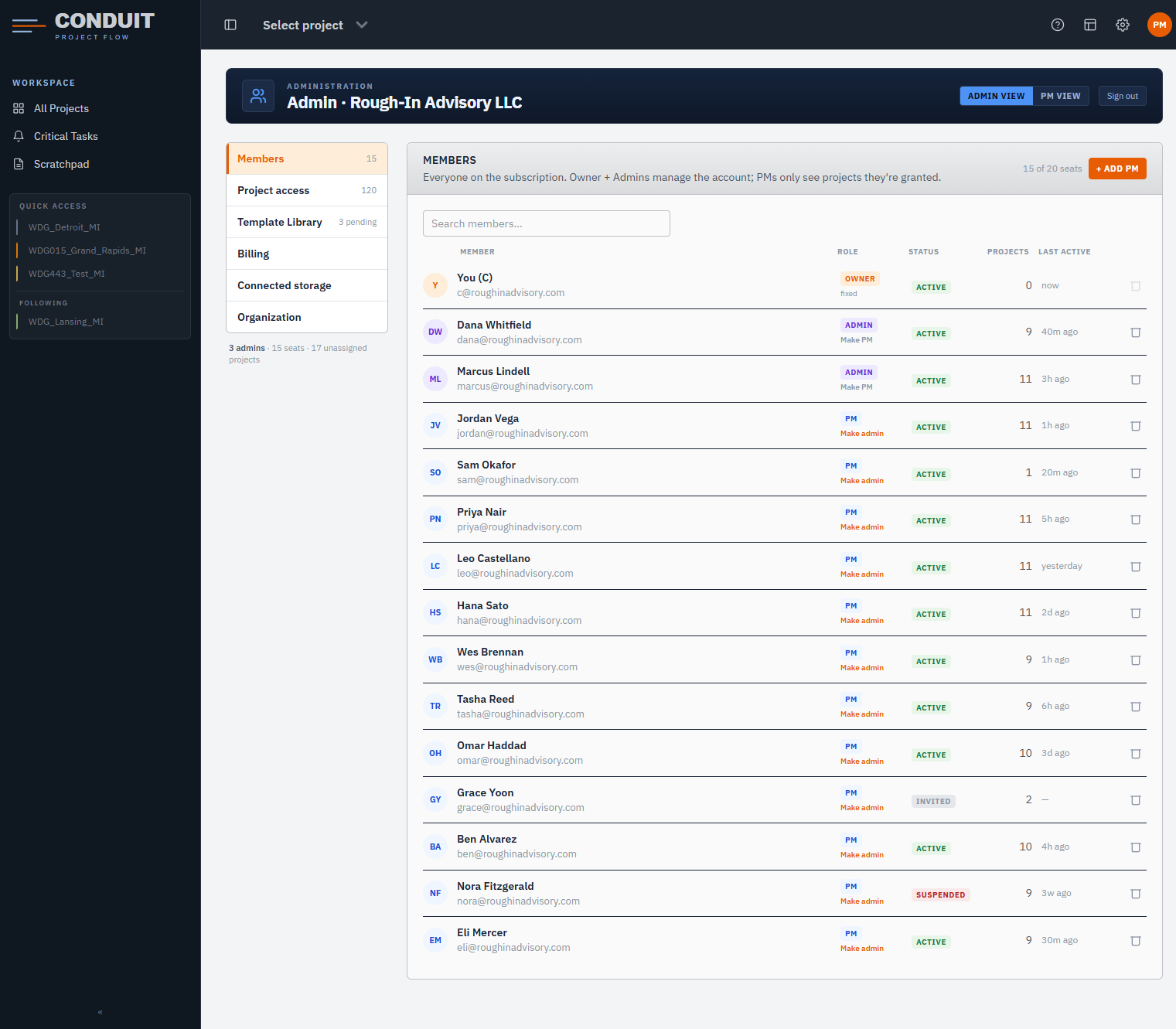
Cover an absent PM without crossing wires.
Projects aren't owned by one person. Assign several PMs so anyone can step in — and give the boss a clean read of who's carrying what, by project and by person.
- Primary vs. following. Coverage lands as a secondary job, kept in its own group so a PM's real workload stays uncluttered.
- The orphan alarm. An active job that loses its last owner raises a loud, distinct flag — nothing runs un-owned.
- A capacity roster. See who's overloaded and who has room before you hand out the next job.
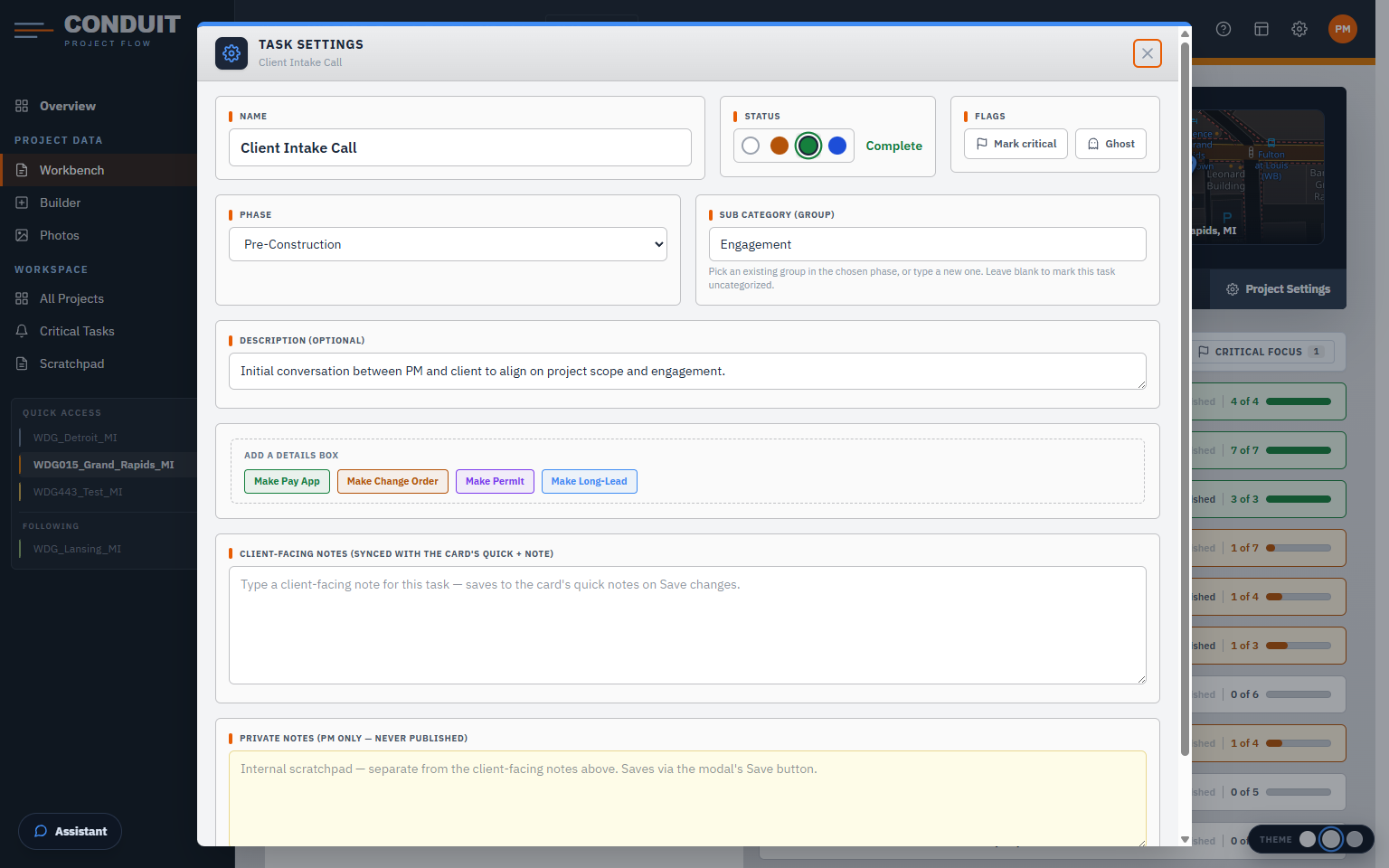
No more side-apps to keep in sync.
Pay apps, change orders, permits and long-leads don't live in separate tools — they're detail boxes on the exact task that needs them, in the flow of the work.
- Long-lead dates compute themselves — order-by and delivery derive straight off the construction timeline.
- Overdue values turn red right on the row, so nothing waits for you to go looking.
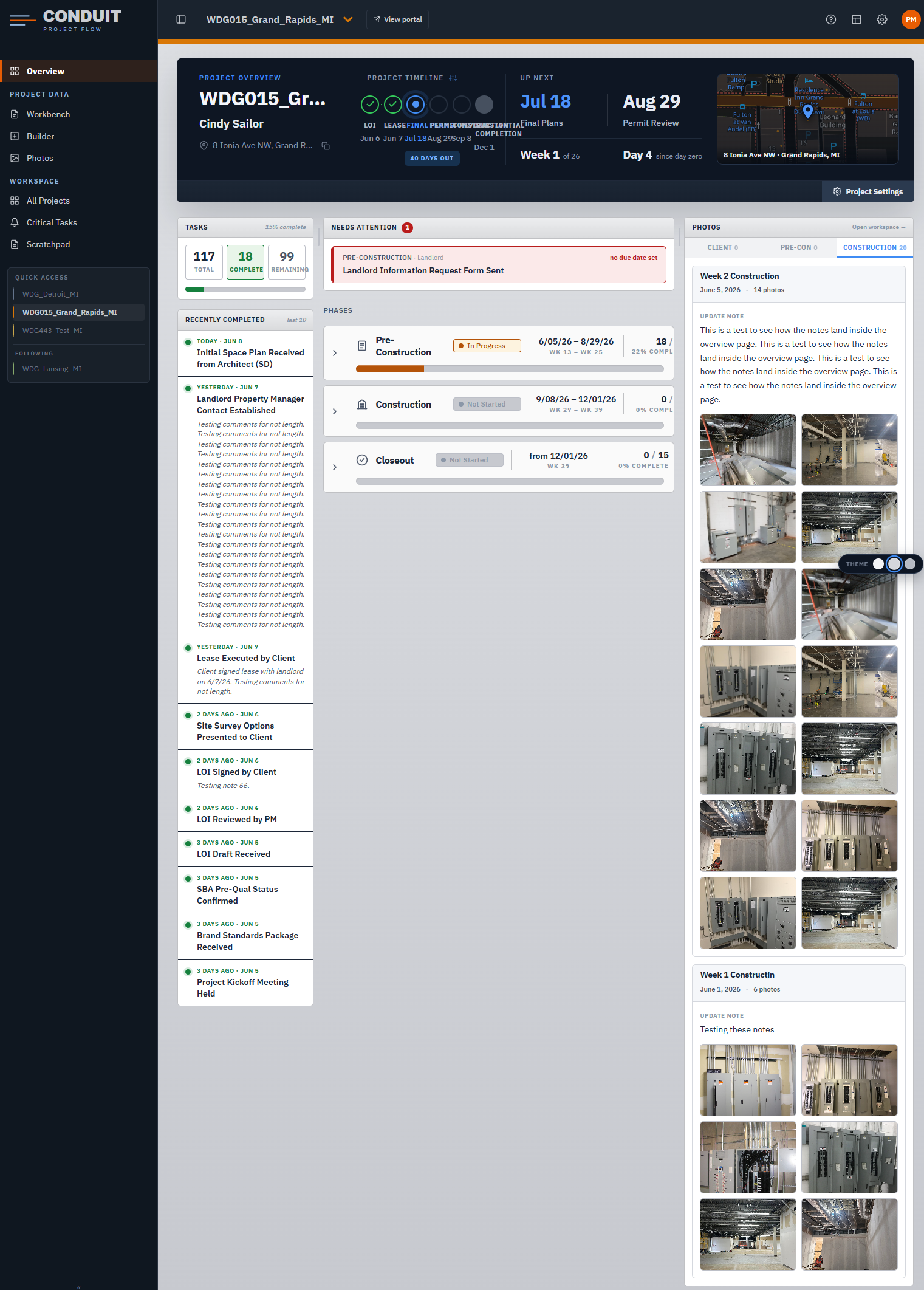
A clean mirror, never the workshop.
The client's portal is your project Overview with every PM control stripped away — the same timeline and progress, behind a PIN, read-only. Your private notes and internal tasks never cross over.
- You choose what shows. Publish notes per item; "ghost" anything internal so the client never sees it.
- The client's only action is photos. They can upload their own; they can't touch anything else.
A window onto your drive — not a second filing cabinet.
Conduit connects to the cloud drive your firm already pays for and reads what's already there. Documents are pointed at in place; only photos are pulled, just so they display fast.
Drives you already use
Google Drive & Shared Drives, Microsoft OneDrive / SharePoint, or Dropbox — all first-class. Point Conduit at the folder you already work in.
Narrowest possible scope
Conduit can only see and touch its own folder — never the rest of your drive. The approval screen says so in the provider's own words.
One copy, owned by you
Tracked documents are referenced in place, never duplicated. If the connection ever drops, it reads as "reconnect" — never "your files are gone."
See it the day it opens.
Join the early-access list for a first look and a say in what ships.
No spam — launch news only.